
A matter of Style: MindManager and Word
It wasn't until I got to the end of the fight that I realised today represented two extremes of style. One easy, one hard. Styling MindManager Style: I had created a presentation in MindManager,...

It wasn't until I got to the end of the fight that I realised today represented two extremes of style. One easy, one hard.
Styling MindManager Style:

I had created a presentation in MindManager, well started it, and realised the template I use is a bit dated. As part of a restructure Store Support - Operations, Visual Merchandise, Store Development - was "branded" so it was time to update my maps to reflect this. I kept it pretty subtle, with a faded icon (left) background image, more modern colours and our new standard font (from Arial to Franklin Gothic). In spite of this almost every aspect of the map appearance needed to change. Then that had to be applied to lots of maps.
MindManager documents are structured with appearance controlled by three types of styling;
- Map Style: This includes the background and all object types for the whole document. You can edit a Map Style within a map and/or save it as a separate .mmas file to apply to other maps.
- Topic Style: These are combinations of individual topic edits saved as a style which can be applied and managed within a map. They are lost when a Map Style is re-applied.
- Object Overrides: Simple edits to a style - change fill, text or line - which are preserved if a Map Style is re-applied
Change the Map Style, apply it and all, non-overridden, elements in the map update. If an item within a map has been overridden you can reset to the Map Style by selecting, then hitting CTRL+Space. Saved Map Styles are applied to a document with Format Tab > Map Style > Apply, a nice gallery displaying the options. If you have linked maps switch to Multi-map View to apply the style to them in one hit. Below shows the same map with two styles applied.
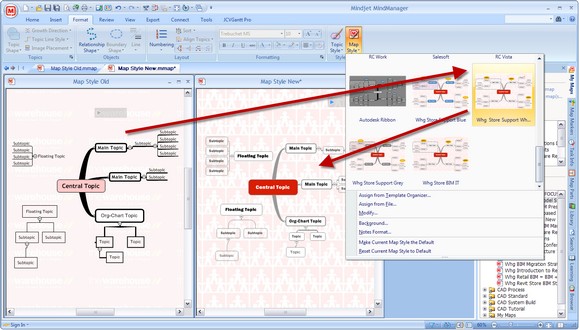
You edit MindManager Styles in a special edit interface (below). Accessed from Format Tab > Map Style > Modify it shows a mock map with all the elements possible in a real document. Clicking each element accesses it's properties making editing a style as simple as editing a document. The "Number of Levels" control on the left dictates how "deep" different styles apply before they revert to the document defaults. The mock map in the editor responds to changes like a document so it's easy to see the impact without the clutter of a real document. You can control the background, object shapes, fonts, "growth" behaviour and colours in a Style.

MindManager Styles, and other templates, are managed with a Template Organiser accessed from Tools Tab. You can add new map styles (from scratch or acquired from existing maps), manage and duplicate them. "Modify" launches the Map Style Editor (as above).

Styling Word Style:
Later in the day I was faced with fixing an old Word document. When it left me, several years ago, it was a fairly simple document created in outline mode with four or five Heading Styles. It arrived back with a couple of weird numbering problems (numbers running through sections) and a Table of Contents (TOC) which didn't work.
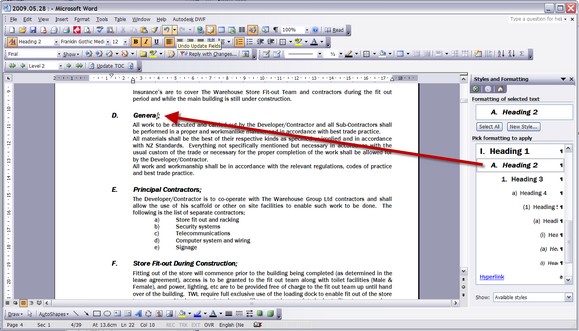
In the intervening years it had acquired a zillion, maybe a slight exaggeration but a lot, of style overrides and lost all the outline characteristics that were looking after style application. Although Word is very flexible I wish its Outline and Style Management were more like MindManager. Applying Styles within the document may seem more intuitive but I find the "Mock Document" editor in MindManager simpler and more predictable. I sure missed the "live preview" of style changes seen in Word 2007 but still have 2003 (with it's awful toolbar UI) at work for another month or so (update coming with Windows 7 64 deployment).
It look ages to unravel the mess and restore a workable document with a TOC that showed the document structure rather than most of its the content. I must admit some of that was due to trying to preserve the manual editing when I should have just "Cleared Formatting" and started again* in Outline Mode. It mystifies me why people don't use Word Outline and Styles more but I find most don't. Perhaps it's too easy to avoid them.
An Overriding Concern:
Much of the hassle in Word came from the application of style overrides meaning its easy to "break" document formatting. To be fair MindManager 7+ can also apply styled topic overrides which ignore the Style Templates, see this post, but I avoid them if possible. The ease of globally applying changes makes sticking with Document Styles - in most applications - my preference. It's a matter of style!
* I also seriously considered importing the Word document into MindManager and using it as a master but it's not my document. MindManager export to Word has it's foibles, mainly because it creates it's own Word Styles, but at least it's predictable!